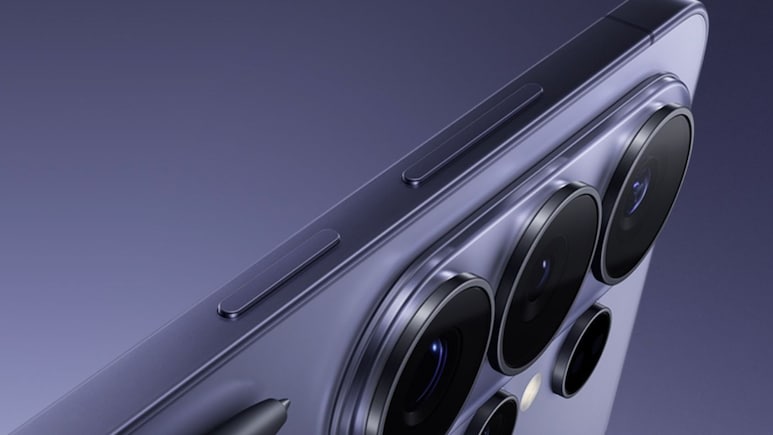
The recently launched Samsung Galaxy S26 Ultra made news for taking display tech and user privacy up a notch by debuting the Privacy Display feature. Now, the Ultra is in the eye of a storm for the same privacy screen (among other reasons) — one in which users are reporting eye strain, fatigue, headaches, and nausea after use. Social media, Reddit, and other platforms are full of such complaints, and many are blaming the S26 Ultra's display hardware.
Why Samsung Galaxy S26 Ultra Is Causing Eye Discomfort
Apart from the typical prolonged screen exposure, the problem with the Galaxy S26 Ultra is hardware related. While competing flagships are moving towards 2,000Hz+ PWM (pulse-width modulation) dimming, the S26 Ultra caps at a mere 480Hz. PWM dims the OLED screen at low brightness by flickering pixels. However, in the Ultra, the low PWM rate can trigger discomfort, especially for PWM-sensitive people in dim environments.
Another feature being blamed is the newly introduced Privacy Display. The Privacy Display limits viewing from certain angles by altering pixel behaviour. However, users report that it can make text appear fuzzy, create shimmery effects, or cause uneven luminance and contrast during motion — leading to added fatigue.
Also Read | Layoffs Are Rising In Tech, But These Skills Are Helping People Unlock Better Pay
How To Mitigate Eye Strain On Your Galaxy S26 Ultra
To mitigate the display problems arising in the Galaxy S26 Ultra, you could try a few steps:
Check Privacy Display: Go to Settings > Display > Privacy Display, turn off Maximum privacy protection or the feature entirely and test for 1-2 days. Turning it off sometimes could help limit uneven luminance.
Use Extra Dim: In Settings > Accessibility, enable Extra dim (and add a shortcut) to achieve lower perceived brightness without getting the deepest PWM zones.
Enable Eye Comfort Shield: In Settings > Display > Eye comfort shield, use Adaptive mode for automatic warming or Custom to choose warmer tones earlier in the evening and adjust the warmth slider.
Reduce Animations: In Settings > Accessibility > Vision enhancements > turn on Reduce animations, Reduce transparency, and blur to minimise animated UI effects that can strain the eye.
Also read: A Tale Of Two Emotions — AI Chatbots Encouraging Self-Harm, While Reciprocating Romance: Study
Essential Business Intelligence, Sharp Market Insights, Practical Personal Finance Advice, Daily Fuel, Gold and Silver Prices and Latest Stories — On NDTV Profit.