Scrolling through old WhatsApp chats often feels deeply personal — birthday snapshots, reminisces of friends over the years, voice notes from family, and more. They're cherished memories, many of which we don't wish to part from.
However, a new phone or a lost device can change all that in a jiffy. Messages are lost, and so are the memories, which makes safeguarding them all the more important.
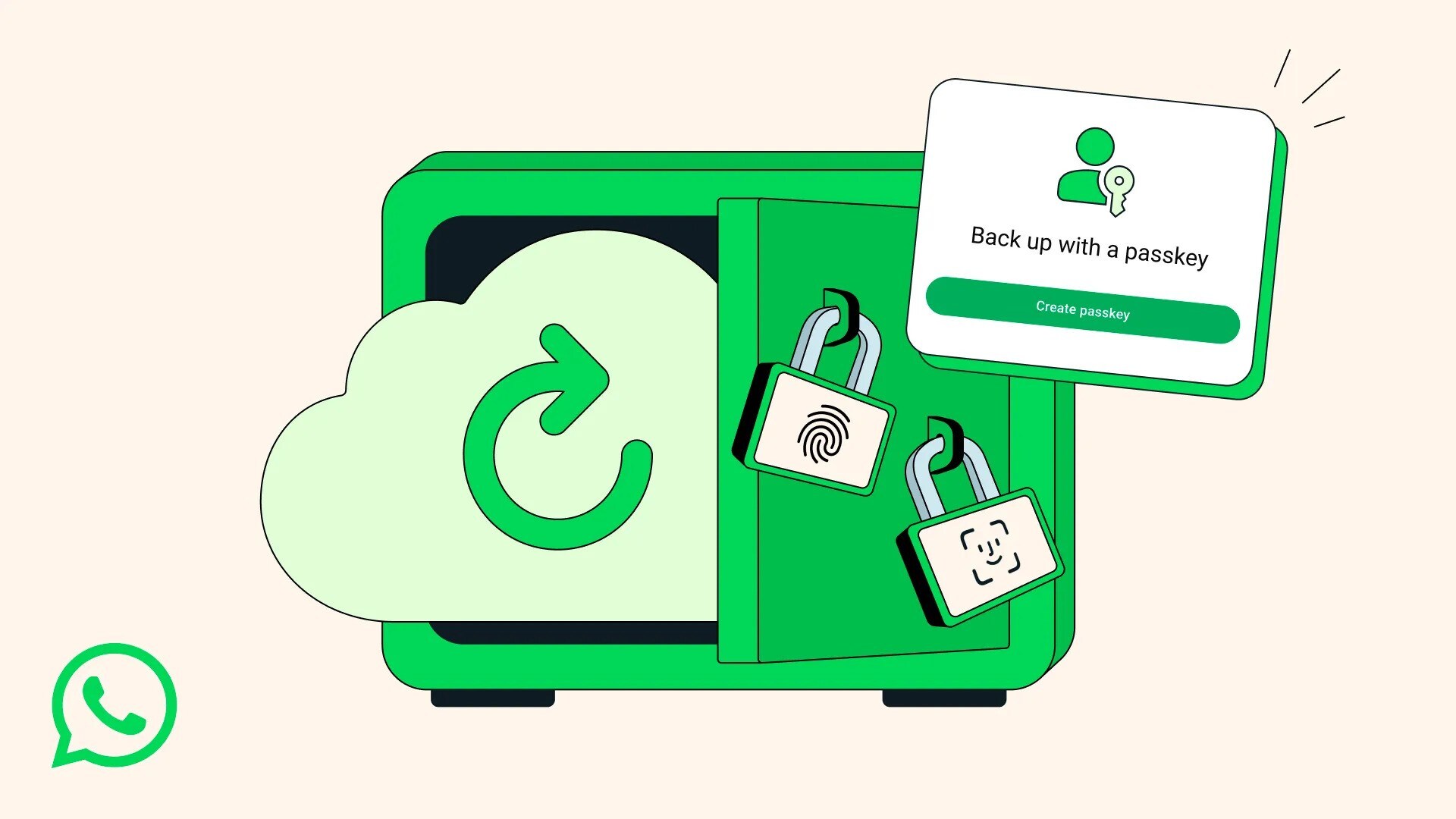
Now, WhatsApp had added one more step to protect them. WhatsApp is introducing passkey-encrypted backups for your chats. With passkey protection now available for end-to-end encrypted backups, the hassle of memorising passwords or managing a 64-digit key is gone.
Also Read | Layoffs Are Rising In Tech, But These Skills Are Helping People Unlock Better Pay
It's seamless and secure. Passkeys let you secure your chat backups using your fingerprint, face, or screen lock. With a simple tap or glance, the same robust security that safeguards your WhatsApp chats and calls now protects your backups, keeping them secure, accessible, and private.
WhatsApp earlier brought end-to-end encryption for chat backups, ensuring your past messages remain yours. The new passkey-encrypted backups feature offers extra protection for your backups.
According to WhatsApp, the feature will roll out gradually in the coming weeks and months.
How To Enable Passkey-Encrypted Backups On WhatsApp
To enable the feature, all you need to do is:
Go to the WhatsApp app.
Navigate to Settings.
Go to Chats.
Scroll down and tap Chat backup.
At the bottom, enable end-to-end encrypted backup.
Essential Business Intelligence, Sharp Market Insights, Practical Personal Finance Advice, Daily Fuel, Gold and Silver Prices and Latest Stories — On NDTV Profit.