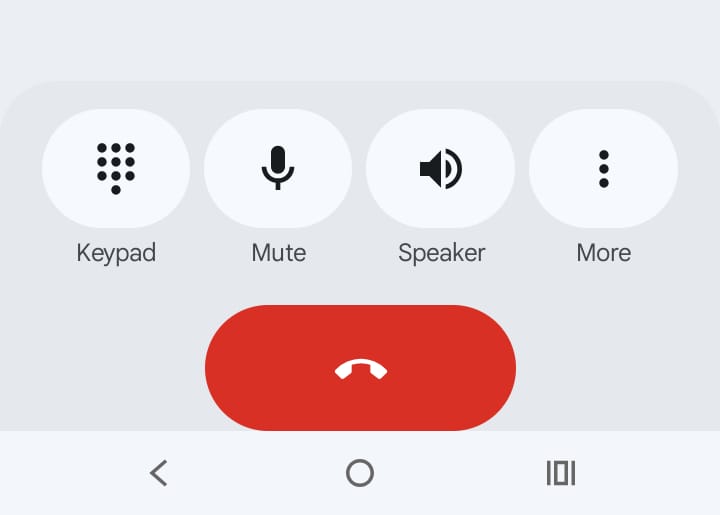
Google recently unveiled an update on Android devices for the Phone app, featuring redesigns from Material 3 Expressive, a revamped user interface, and new gestures. Among the redesigned elements were larger buttons for ending calls, accessing the keypad, muting, and enabling speaker options.
Tweaks were also made to contacts and call history, with horizontal lines now distinguishing each contact and recently dialled numbers. Additionally, similar to iOS, there is a sliding option to accept or reject an incoming call.
However, many Android users were dissatisfied with this abrupt change in UI. Users criticised the update, saying it can be challenging for those who're not well-versed with technology, such as parents, and some even pointed out that it hampers their muscle memory.
For some users, the much larger red Call End button was a blemish, while others found buttons “blocky, oversized, and ugly.”
The good news, however, is that you can revert to the previous user interface.
How To Revert To Old Phone App On Android Devices
To revert to the old dialler app and the familiar UI on Android phones, follow the below steps:
On Play Store
On the Play Store app on your Android smartphone, tap on the profile icon (the one with the picture) located in the top right corner.
Scroll down and select Settings.
Tap on the “Network preferences” dropdown and go to “Auto-update apps.”
Now choose “Don't auto-update apps” to stop the dialler app from automatic updates.
Clear The Cache
In Settings on your phone, go to Apps, and then to Phone.
Tap on “Storage & cache” and choose “Clear cache” option.
Phone App In Play Store
In the Play Store, search for Google Phone app.
Choose the app from the search results.
Select “Uninstall.”
This action will restore the app to its original version with the previous UI that was familiar to you.
One thing to note, however, is that turning off auto-updates is typically not advisable. An alternative solution is also to use a secondary dialling app (if provided by the manufacturer) and make it your primary phone app.
Essential Business Intelligence, Continuous LIVE TV, Sharp Market Insights, Practical Personal Finance Advice and Latest Stories — On NDTV Profit.